Getting started
- Go to balancivo.com and sign in with your email, or click Use a passkey (fingerprint or face) on a device you've set one up on. Owners also enter the 6-digit code from their authenticator app.
- Pick your organization from the switcher at the top of the menu. Each organization (your business, a church, a side project) keeps its own books.
- Use the menu on the left. On a phone, tap the Menu button at the top to open it.
The menu is grouped by how often you'll use it:
- Day to day: Review, Import statements, Checks, Loans, Reconcile, Month close
- Money in and out: Invoices and bills, Payroll, Receipts, Subscriptions, Contacts
- Setup: Accounts, Fixed assets, History
- Reports: Financial statements, Ledger, Chart of accounts, Profit and loss, Balance sheet, Cash flow, Budget, Funds, Tax and donor reports
Pages marked Plus in this guide are part of the Plus plan. On Starter or Standard, the menu tags them Plus and they show what they do and how to upgrade. Every free trial and every charter subscriber has them. See What each plan includes.
Tip: Words with a small info icon have a plain-English explanation. Hover or tap the icon to see what they mean.
Every week: get transactions in and sort them
There are two ways to bring in your bank activity. Pick one per account.
Option A: Connect your bank
Open Accounts, click Connect a bank, and sign in through the secure Plaid window. Choose which bank accounts to bring in. Balancivo never sees your bank password, and new transactions arrive every night. Only the owner can connect a bank, and two-step sign-in must be turned on first. Every plan includes automatic bank connections: 2 on Starter, 5 on Standard and 15 on Plus.
Option B: Upload a statement
- Download a PDF, CSV, OFX or QFX statement from your bank's website.
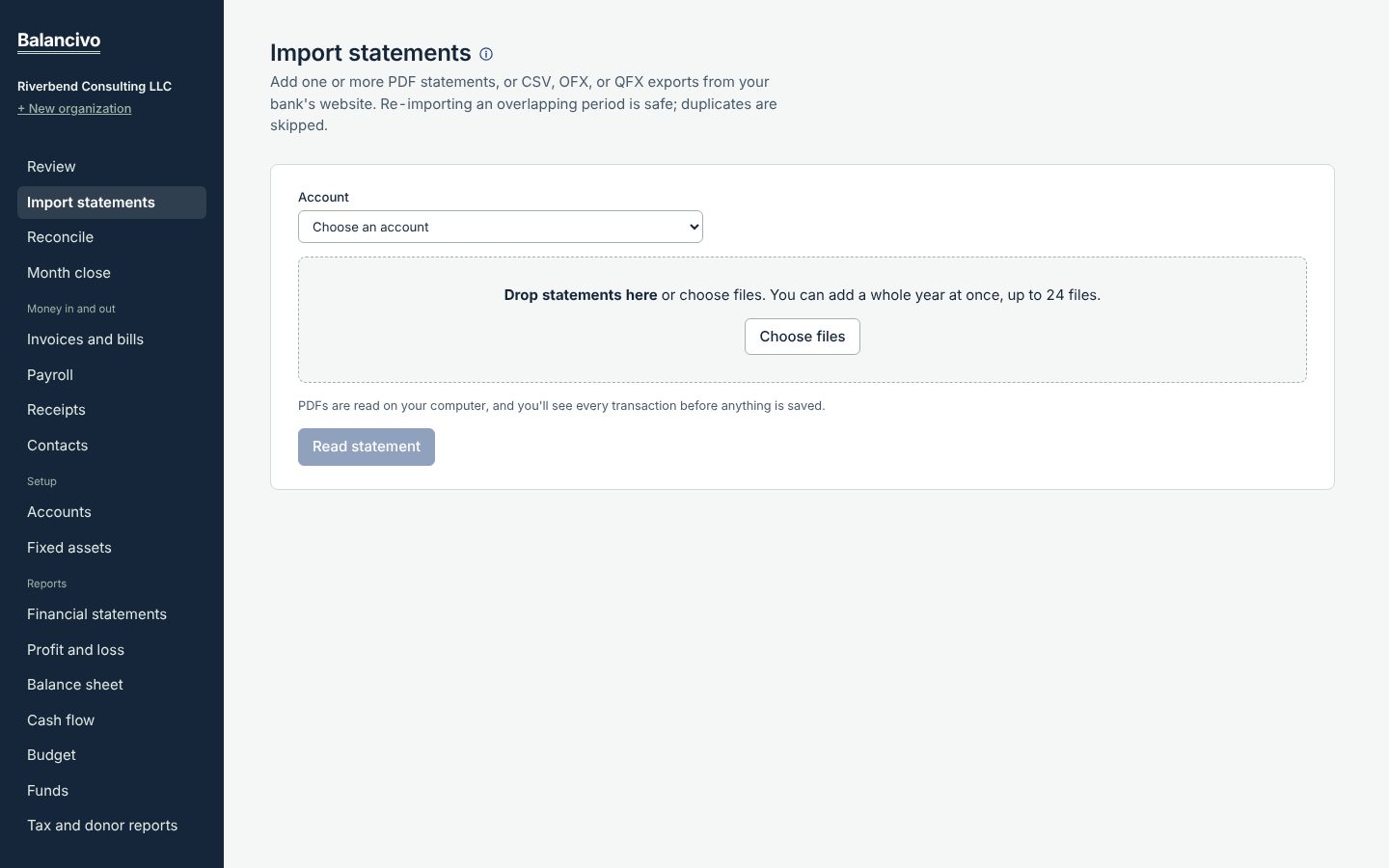
- Open Import statements, choose the account, and drop the file on Drop statements here. You can add several months at once.
- Balancivo reads the statement and checks that it ties out to the bank's balances. For a CSV, it may ask you to match the columns once. Duplicates are skipped for you.
Then review
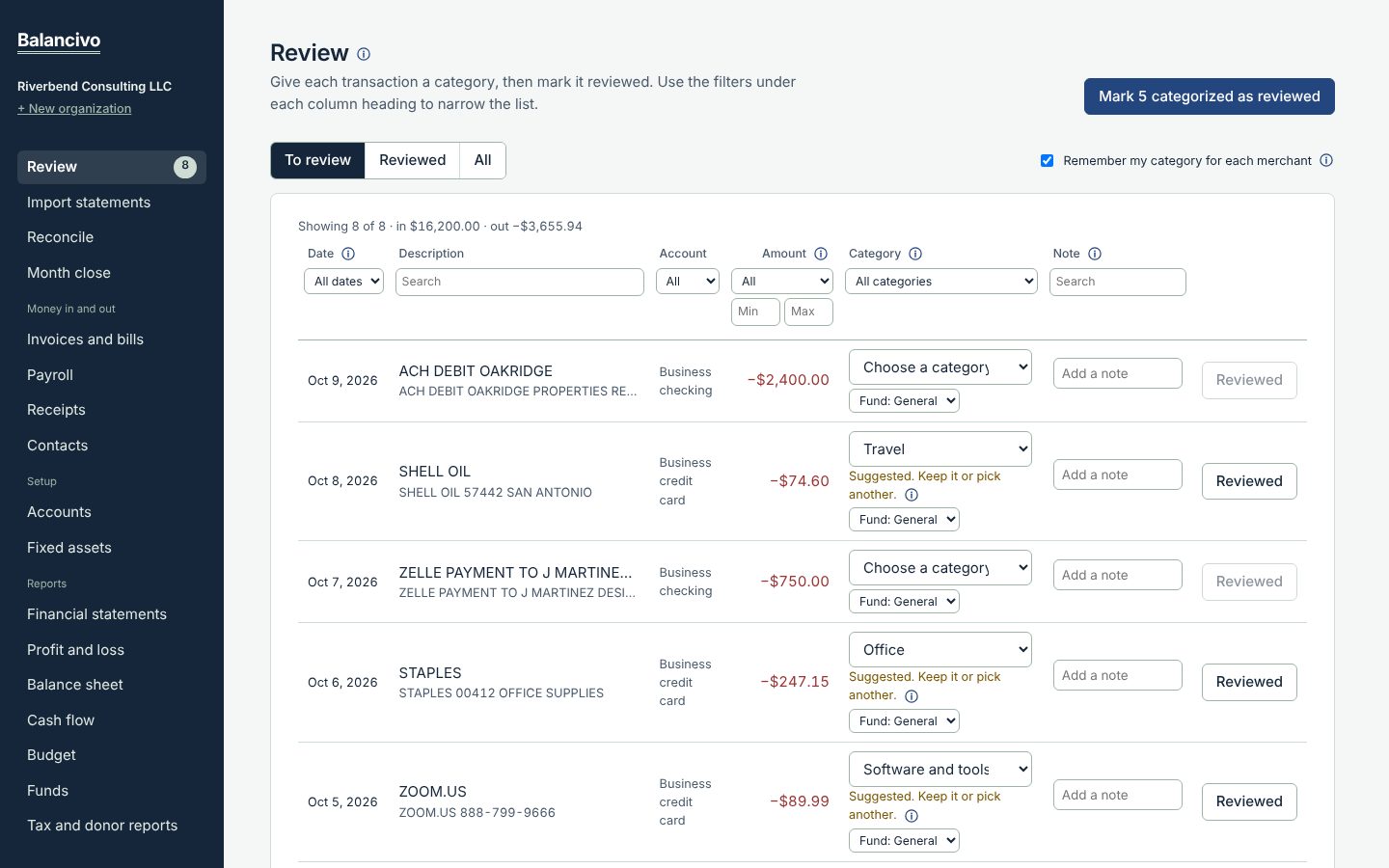
- Open Review. Everything new waits here.
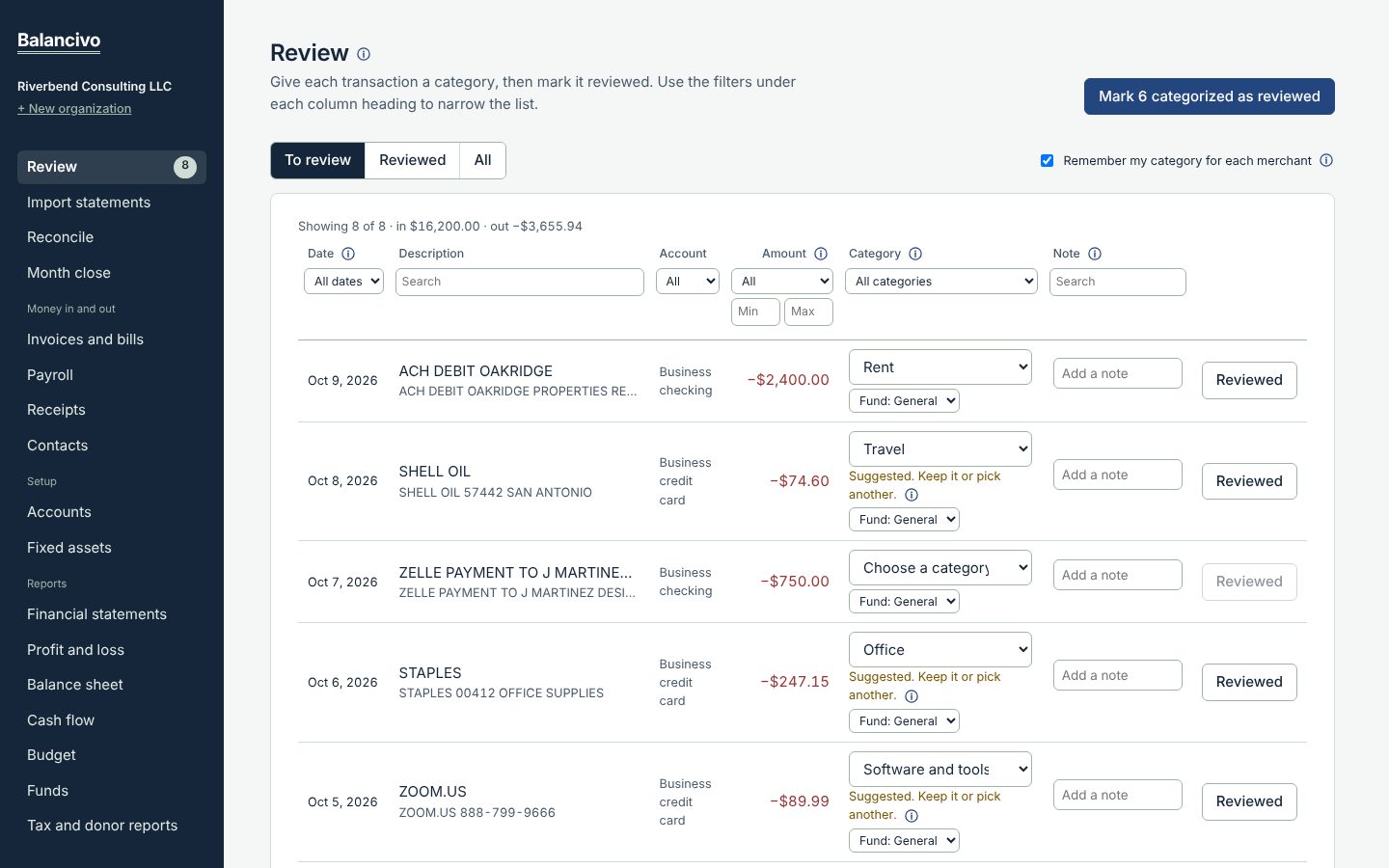
- For each line, pick a category under Choose a category (for example, Office or Tithes). Balancivo suggests one when it recognizes the merchant.
- Click Reviewed, or mark all categorized lines reviewed at once. Reviewed lines flow into your reports right away. Leave Remember my category for each merchant on so next month's lines fill in themselves. (Owners see this switch, and so do bookkeepers an owner lets change learned rules.)
- Plus One deposit or payment that covers several things? Click Split under its category and divide it, for example a $2,000 cash deposit into $1,200 Tithes, $500 Offerings and $300 Missions.
Zelle memos and receipts from email Plus
Banks leave the memo off Zelle payments in your statements, but their email alerts include it. In Settings, under Zelle memos, either forward those alerts to your private Balancivo address or let Balancivo check your Gmail, Outlook or other mailbox (read-only). Each memo appears under its bank transaction in Review.
Under Receipts from email, do the same for receipts and invoices you get by email. Balancivo saves each one as a PDF on the matching transaction and never adds or changes money.
Tip: Ten minutes once a week is enough. Small batches are much easier than a year-end pile.
Every month: reconcile, close, and print statements
1. Reconcile each account proves your books match the bank
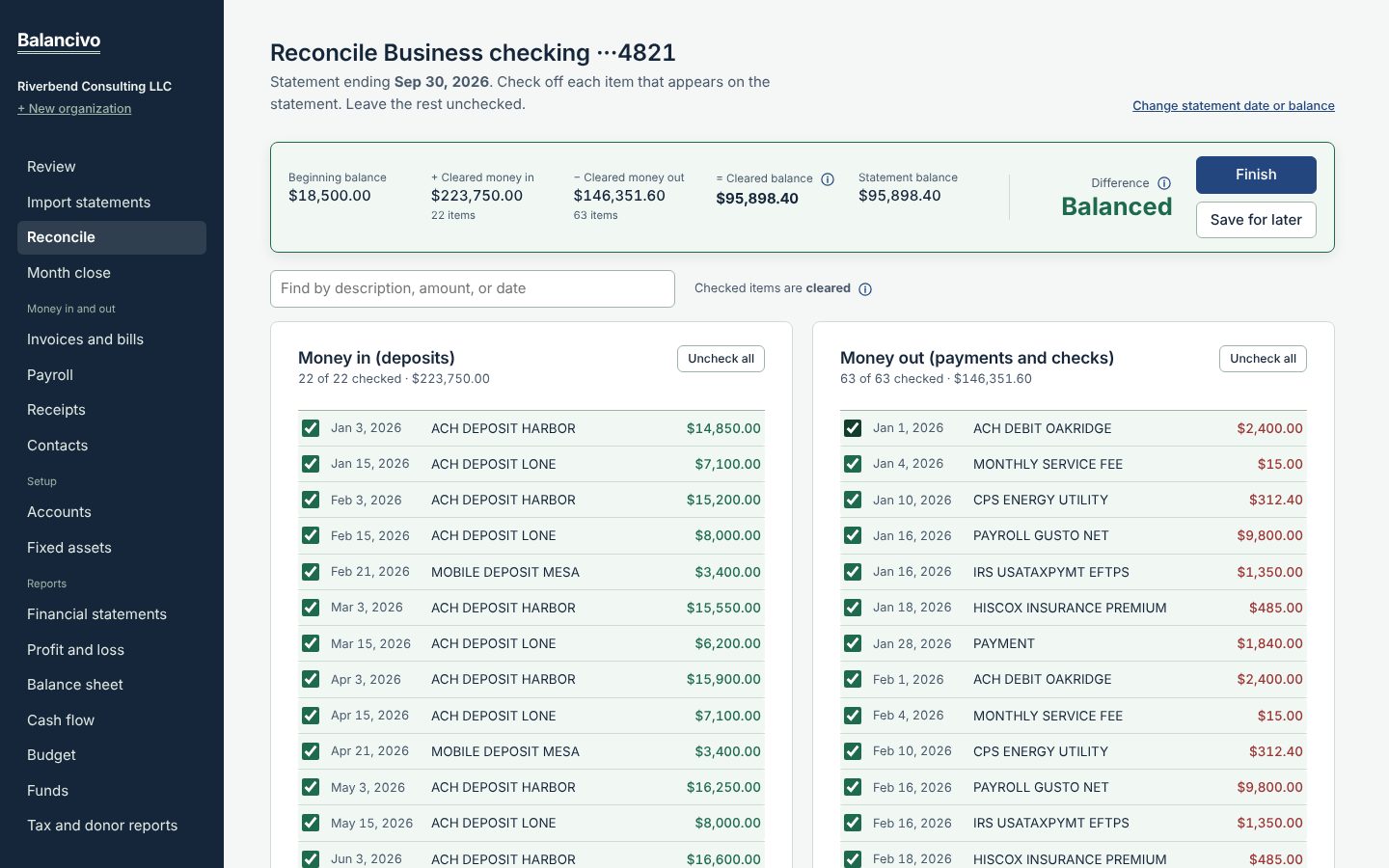
- Open Reconcile and click Reconcile next to the account.
- Type the statement's ending date and ending balance from your paper or PDF statement, then click Start reconciling.
- Check off each transaction that appears on the statement. When the difference reads Balanced, click Finish.
2. Close the month locks it so shared reports can't change
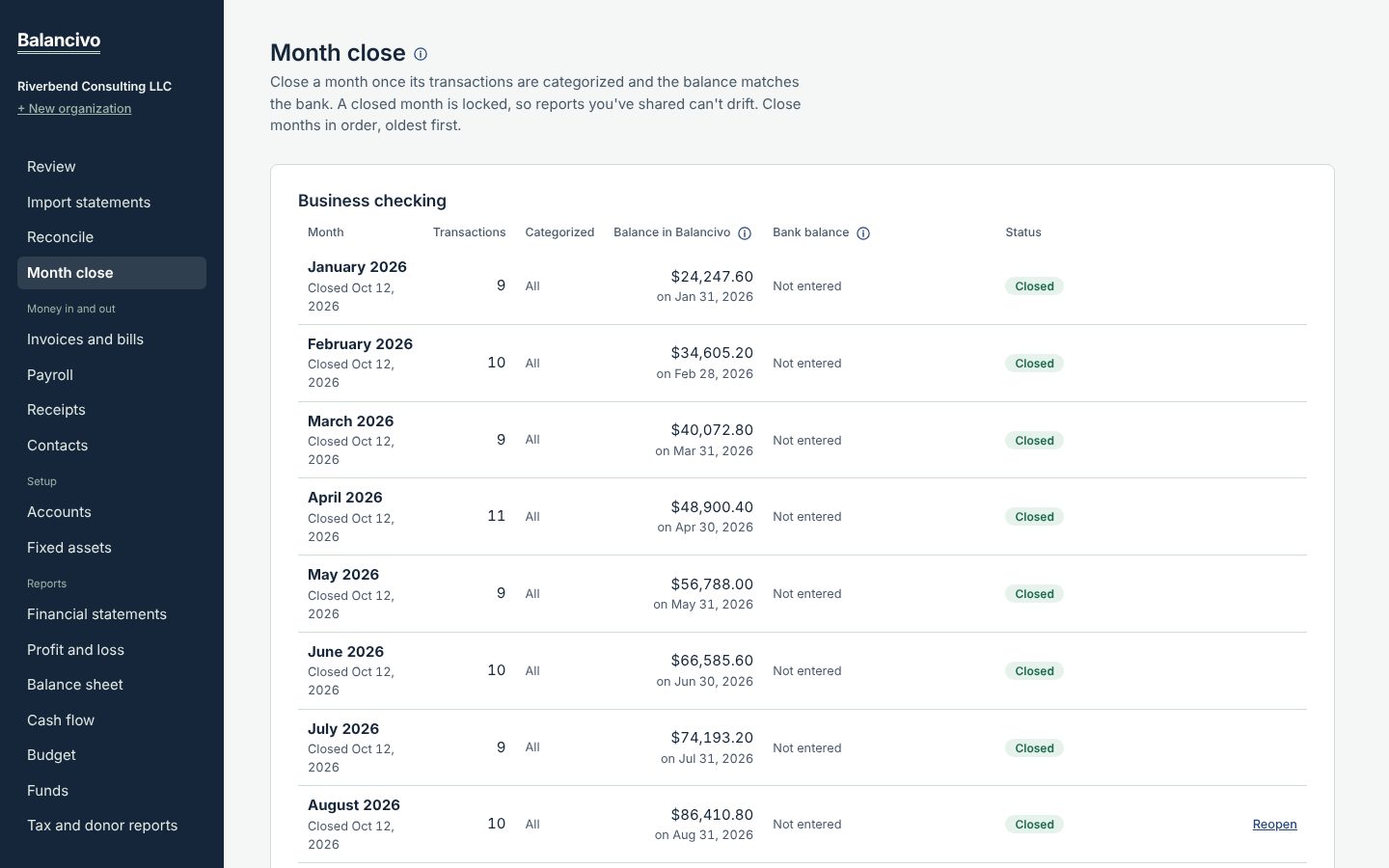
- Open Month close. Each month shows how many transactions are categorized and whether Balancivo's balance matches the bank.
- Enter the bank balance if it's missing, then click Close month. Close months in order, oldest first.
- Need to fix something later? Click Reopen, make the change, and close it again.
3. Print your financial statements
- Open Financial statements and choose the dates (a month, a quarter, or the year).
- You get a complete package: cover page, profit and loss, balance sheet, cash flow, and notes, including depreciation of equipment.
- Click Print or save PDF to send it to your accountant, bank, or board.
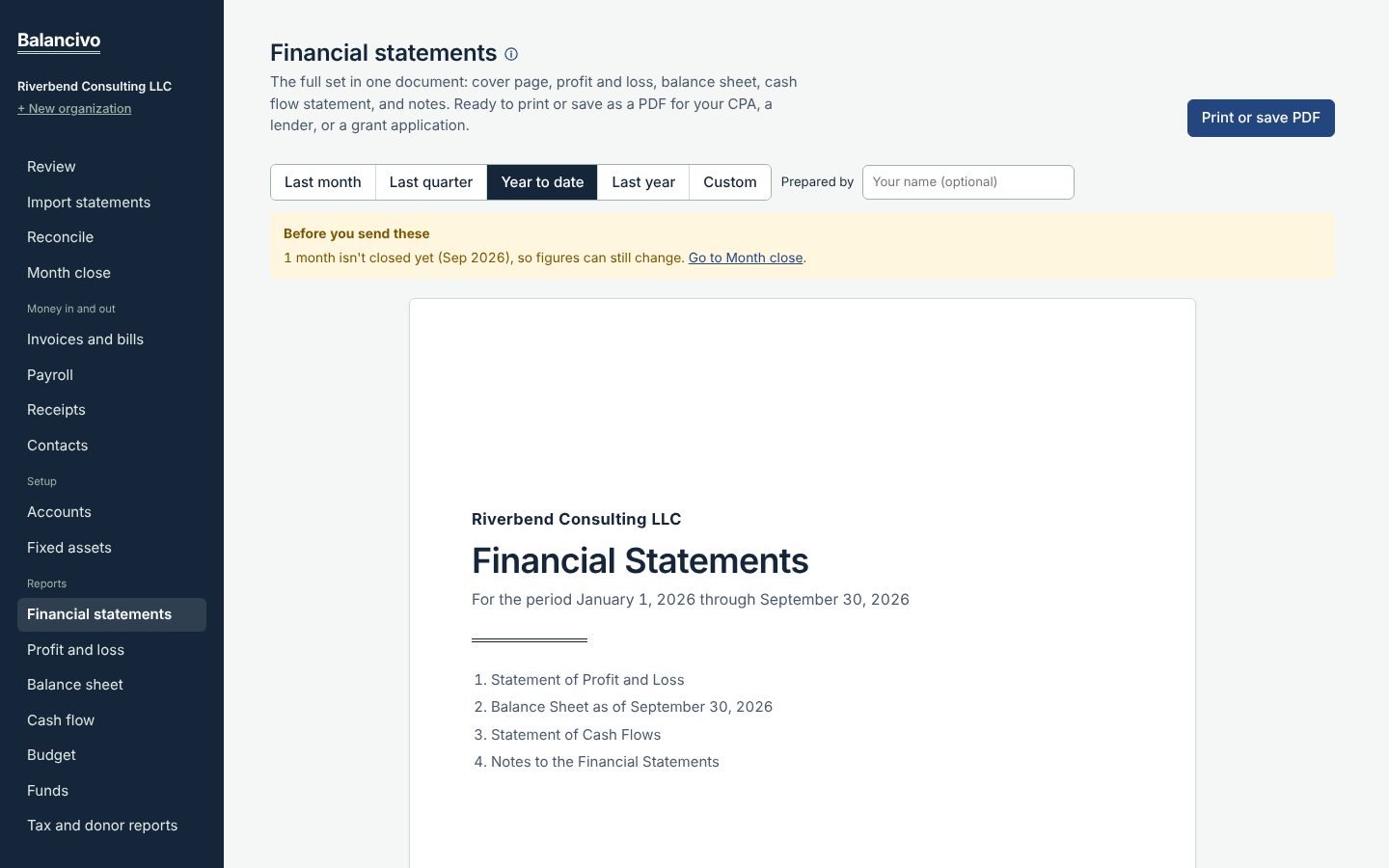
Tip: If a Before you send these box appears, it lists what still needs attention, such as uncategorized lines or unclosed months.
Journal entries and the ledger Plus
- Open Ledger. The Journal tab lists every entry, numbered in order. Trial balance and General ledger show your books as debits and credits.
- Click + New journal entry for an adjustment your accountant asks for, such as an accrual. Debits must equal credits; for a church, each fund has to balance too.
- Click Save draft, or Post entry when it's ready. A posted entry can't be edited; to correct it, click Reverse.
Money in and out
Invoices and bills
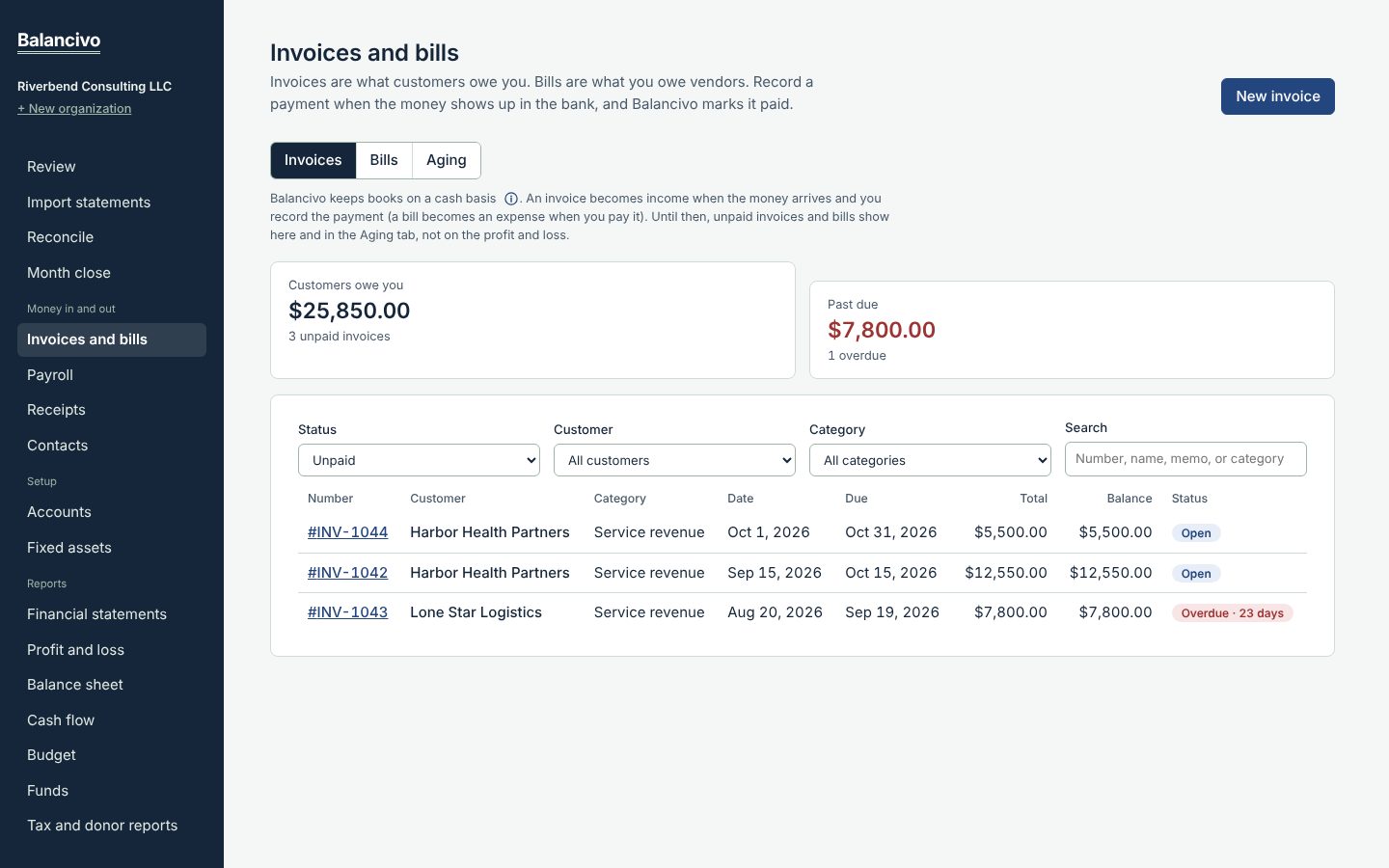
- Open Invoices and bills. Use the Invoices tab for money customers owe you and Bills for money you owe.
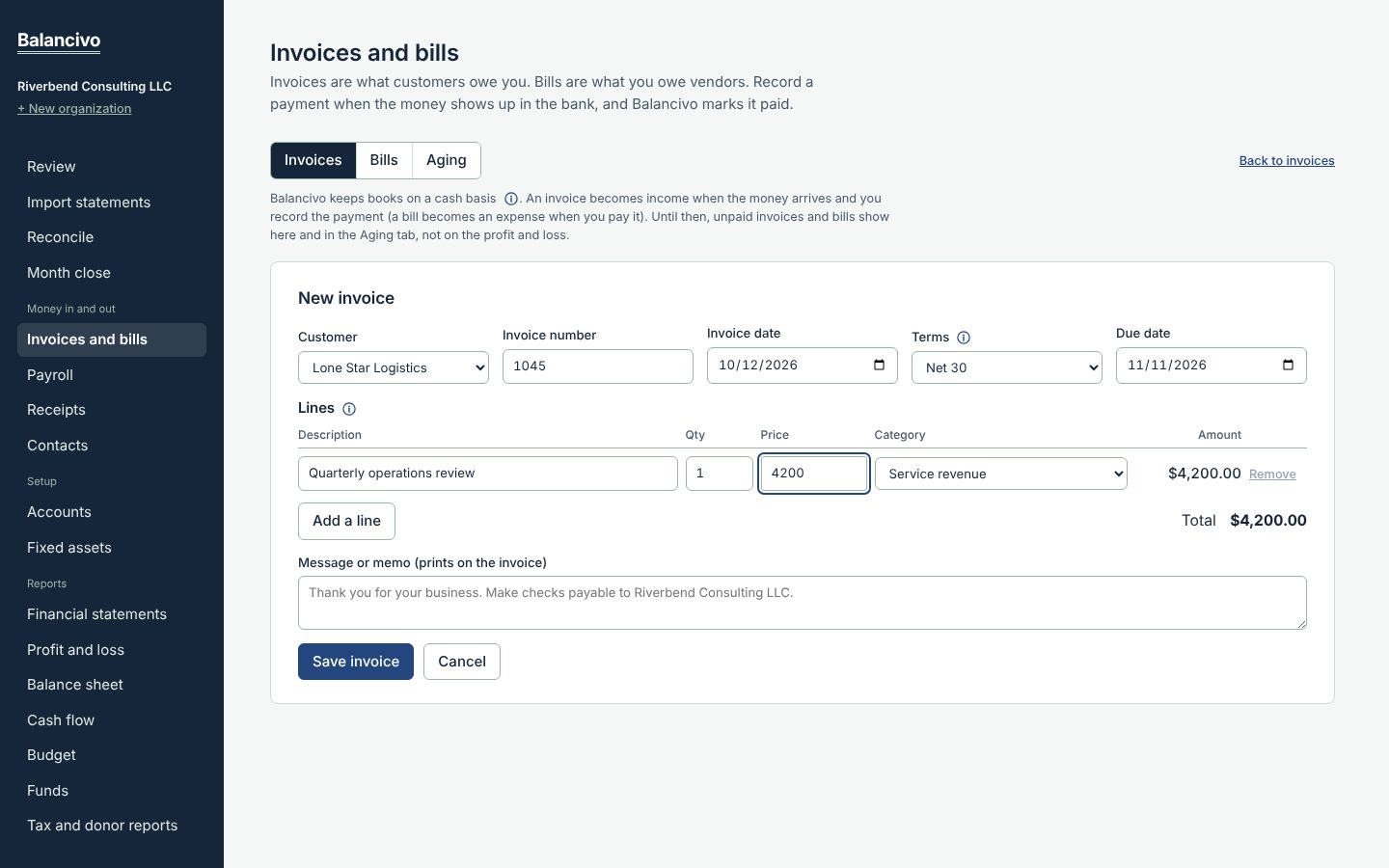
- Click New invoice, choose the customer, and Add a line for each item with a quantity, price, and category. Bills from vendors work the same way on the Bills tab.
- Click Print or save PDF to send it. When the money arrives, click Record payment and pick the matching bank transaction, so nothing is counted twice.
- The Aging tab shows who is late and by how long.
Payroll
- Open Payroll and click Add the people you pay. Enter their pay rate, pay schedule, and W-4 answers. For a pastor, set the kind to Minister / clergy: no Social Security or Medicare is withheld, and the housing allowance is kept out of income tax.
- Click New pay run, then Calculate. Balancivo suggests federal withholding (2026 IRS tables), Social Security, Medicare, and unemployment taxes. Check every amount; you can type over any of them.
- Click Post to the books, then Pay stubs to print stubs for your team.
Balancivo records payroll; it doesn't send paychecks or file tax forms. Pay through your bank and file with the IRS and your state as usual.
Receipts
- Open Receipts and drop in a receipt (a photo from your phone works).
- Click Attach to link it to the matching transaction.
- The Missing receipts tab lists larger expenses that still need a receipt.
Plus Receipts that arrive by email can come in on their own. See Zelle memos and receipts from email.
Checks Plus
- Open Checks and click Write a check: the account, number, date, payee, amount and category.
- It counts in your books the day you write it. When the bank pays it, the statement or bank feed clears it automatically.
- The Outstanding list shows checks not yet cashed, and flags any older than 180 days.
Loans and mortgages Plus
- Add the loan on Accounts as a Loan account, then open Loans, click Set up terms and enter its rate, monthly payment and escrow.
- In Review, a payment that matches the monthly amount splits itself into principal, interest and escrow.
- When the lender's statement arrives, click Check against a lender statement and enter their balance to compare it with yours.
Subscriptions Plus
- Open Subscriptions. Balancivo finds the services you pay for again and again from your bank activity and email receipts.
- It flags price increases, renewals coming up, charges that stopped, and the same service paid on two accounts.
- Owners can get one email a day, at most, about renewals coming up and price increases, and choose how many days ahead to hear.
Budget
- Open Budget and start from last year's actuals, or type an amount for each category.
- Save it, then compare budget with actual spending for this month, year to date, or the full year.
For churches and nonprofits
Start with the church chart of accounts
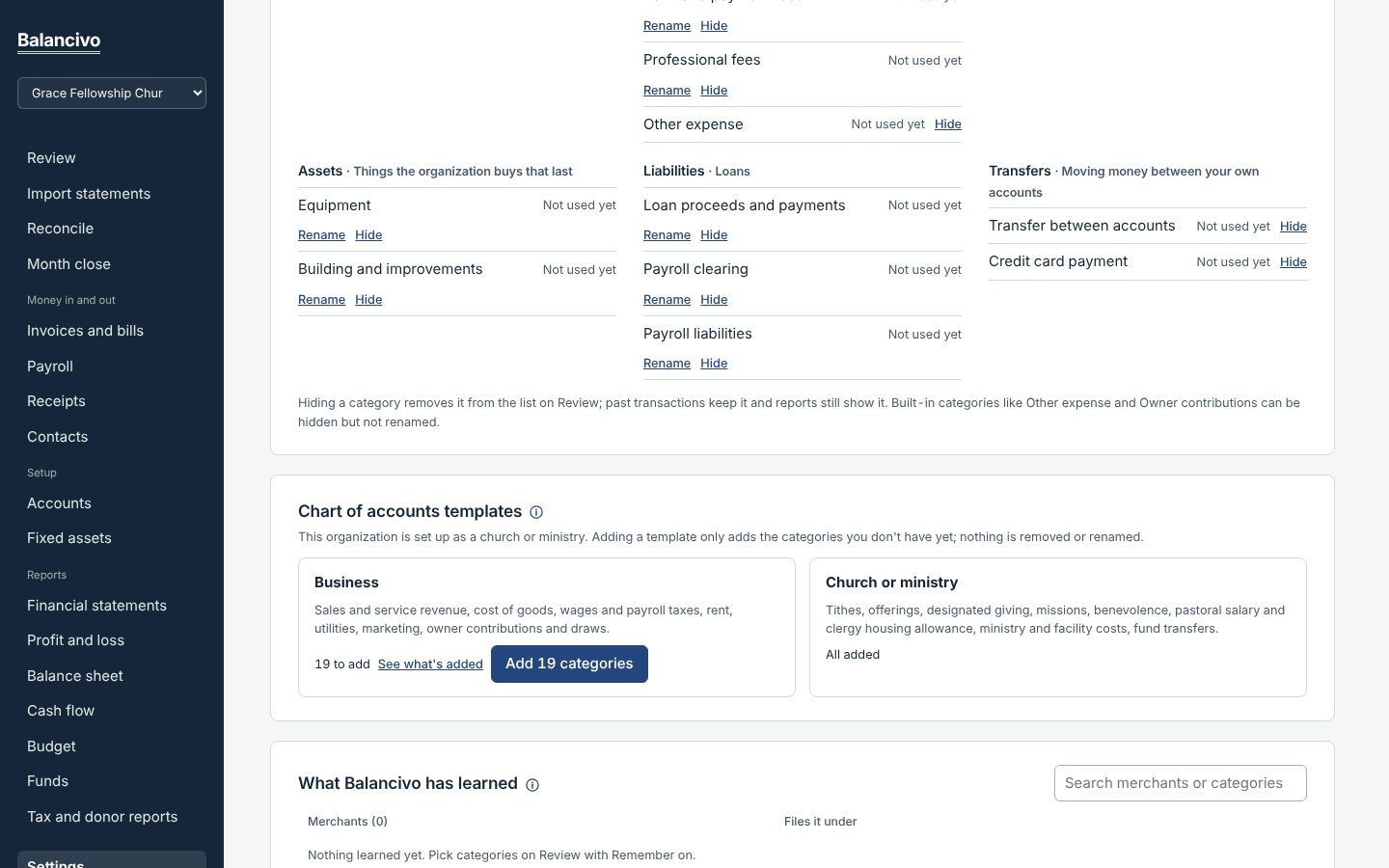
- Open Settings and find Chart of accounts templates.
- Next to Church or ministry, click Add … categories. You get income accounts like tithes, offerings, and missions, plus church expense accounts.
- Your statements switch to church wording: Statement of Activities and Statement of Financial Position.
Starting a brand-new organization? Choose the church template when you create it.
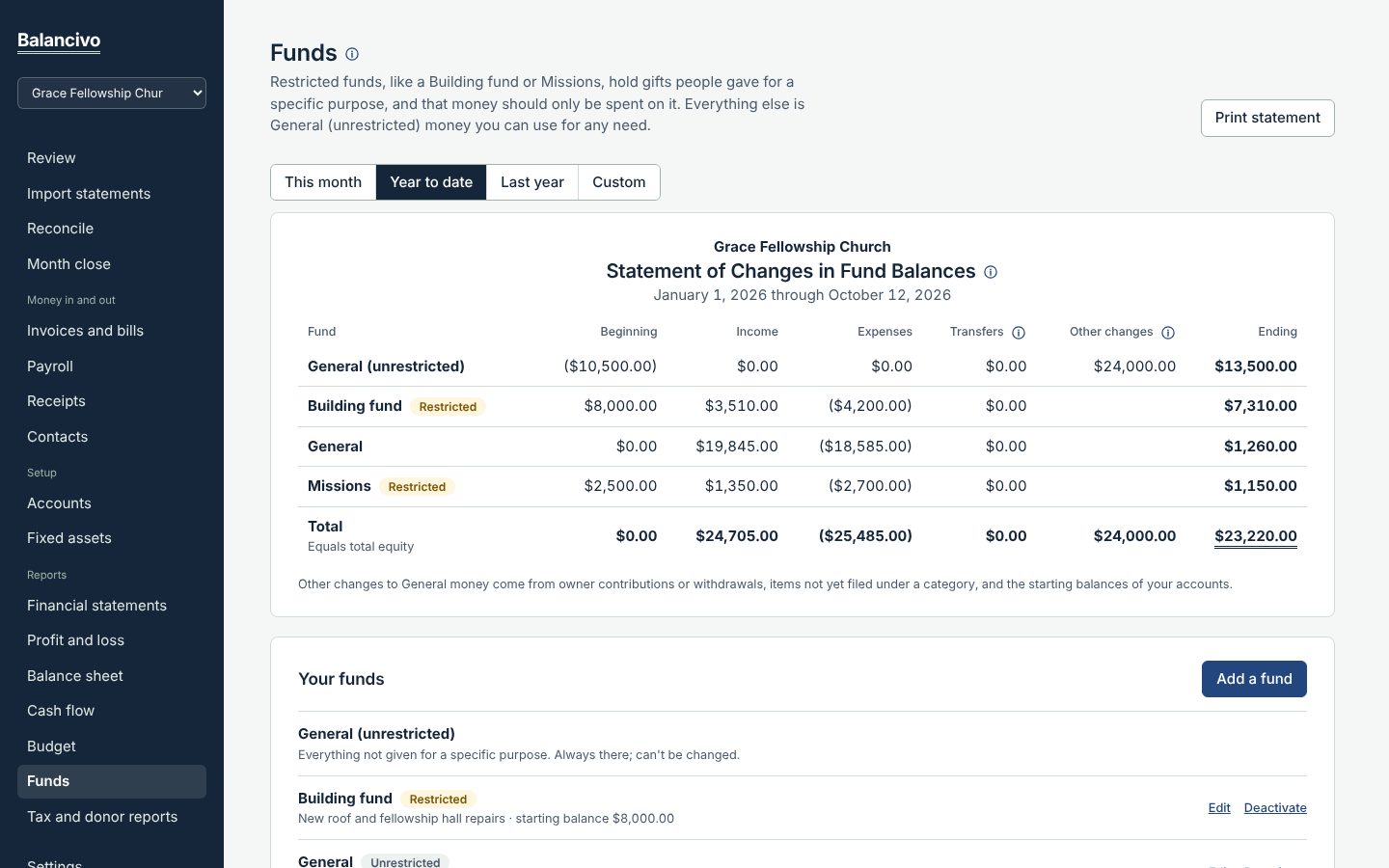
Track designated funds building fund, missions, benevolence
- Open Funds and click Add a fund. Mark it restricted if donors gave it for a specific purpose.
- When you review a gift or expense, pick the fund it belongs to. Anything without a fund stays in the General fund.
- To shift money between funds (for example, releasing building money once the roof is paid), click Move money.
Year-end donor statements and 1099s
- Make sure each donor and vendor is saved in Contacts with a mailing address.
- Open Tax and donor reports. Under Donor statements, pick the year and print a contribution letter for each donor.
- The 1099 vendors tab lists vendors who may need a 1099-NEC, using that year's threshold. Click Download CSV to hand the list to your tax preparer.
Your team
- Open Settings and find Organization and team. Type your bookkeeper's or treasurer's email, choose Bookkeeper, and click Send invite.
- Before you send it, tick what this bookkeeper may do. Everyone can import, review and categorize. These are up to you: post journal entries, change learned rules, void checks (on to start), void invoices and bills, delete receipts, and delete bank transactions.
- Change any of them later from the same list, under the person's name. Owners can always do everything.
What each plan includes
Every plan (Starter $15, Standard $39, Plus $79 a month) includes unlimited statement imports, automatic bank connections, Review with categories remembered by merchant, reconciliation, month close, the financial statements package, your own chart of accounts, funds, budgets, invoices and bills, receipts you add by hand, donor statements and 1099 reports, and a full change history. Standard and Plus add payroll and the Form 941 worksheet.
Plus adds:
- Zelle memos, receipts from email (with AI receipt reading) and subscription tracking
- Journal entries and the ledger, the check register, loans and mortgages, and split transactions
- Up to 3 organizations, 15 people, 15 bank connections and 50 people on payroll
The 7-day free trial includes every feature. Charter subscribers (subscribed before January 1, 2027) keep every feature, Plus features too, for as long as their subscription stays active. Moving from Plus to Standard never removes anything already in your books. See plans and prices.
Quick answers
- I put something in the wrong category.
- Open Review, switch to the Reviewed list, reopen the line, and pick the right category. If its month is closed, reopen the month first in Month close.
- My balance doesn't match the bank.
- Usually a statement is missing or a transaction was imported twice. Check Import statements for every month, then use Reconcile to find the difference.
- I bought equipment (a laptop, a van, a sound system).
- Record it in Fixed assets with its cost and useful life. Balancivo spreads the cost over the years as depreciation, and it appears on your statements automatically.
- I need a category that isn't there.
- Open Settings and add it under Categories.
- I run more than one business, or a church too.
- Use the organization switcher at the top of the menu to add or switch organizations. Each one has separate books.
- Can my bookkeeper or treasurer get in?
- Yes. Invite them from Settings by email and choose what they may do. They sign in with their own email as a bookkeeper. See Your team.
- A page says it's part of the Plus plan.
- That page is a Plus feature. An owner can upgrade at agilegnosis.com/balancivo; nothing in your books changes when you do.
- Is my data safe?
- Each organization's books are walled off, closed months can't be changed, and every change is recorded in an audit log. Turn on two-step sign-in in Settings for extra protection.
Balancivo is a bookkeeping tool, not tax or accounting advice.